
Moviebox Pro Device Compatibility: How to Check Before Installing
Independent editorial guidance on compatibility, device settings, safety, and responsible use.
Compatibility starts with your exact device, its operating system, and a distribution channel the publisher has authorized. If you are researching the Moviebox Pro app for an Android phone, a tablet, a TV device, or a laptop, verify support for each device separately. This independent guide explains how to read system requirements, distinguish installation from playback, and confirm publisher identity and viewing rights before committing to a setup.
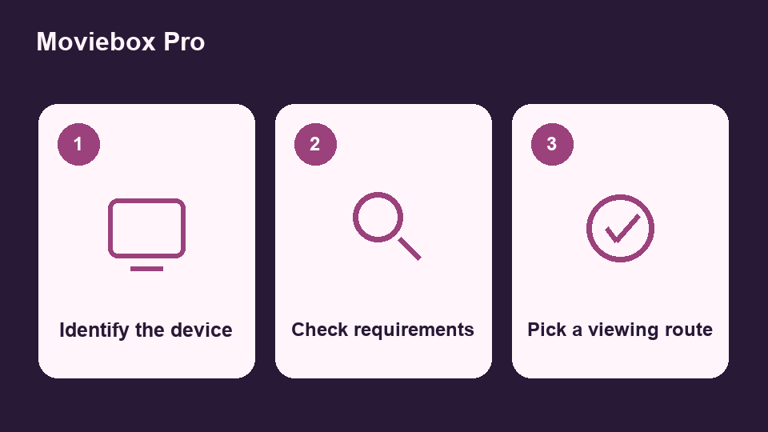
Identify the hardware and software you actually have
Open your device settings and find the About or system information screen. Record the manufacturer, exact model, and operating system version. For a laptop, include whether it runs Windows, macOS, or ChromeOS. For a TV setup, check which device will run the app. If you use an HDMI streaming stick, the stick’s model and software version are more relevant than the make printed on the television.
Imagine you have an older Android tablet and a newer phone. The same Google account may be signed into both, but each device has its own OS version and hardware. Check the listing while using each device or compare both with the publisher’s requirements. If the publisher specifies processor architecture, use the manufacturer’s specifications for your exact model to confirm it. Models with very similar names can have different internals.
Match the device to a documented route
Find the developer or seller name on a trusted storefront, where available, and check the developer website or support contact listed there. Look for a corresponding link or distribution statement on the verified publisher’s site. Use that source to check the supported device types, minimum system requirements, and any installation instructions. A page calling a file a “Moviebox Pro APK for Android” gives you a search phrase, with the supported models still to be verified.
Read support information literally. A requirement for an Android phone tells you which phones may be eligible. TV support still needs its own confirmation, including remote navigation and playback. If documentation only mentions a desktop browser, check the supported browsers and whether the publisher identifies a playback address. If the store hides a listing on one device, ask the verified publisher whether the model, OS, or region affects eligibility before trying another route.
Separate installation from the way you plan to watch
An app can open successfully and still fail the task you care about. Write down the intended use first. You might want subtitles on a television, consistent audio through a soundbar, or playback in a supported laptop browser. Check whether the publisher documents the relevant controls and device combinations. If the setup is confirmed and you have a licensed title to test, try opening that title, playing it briefly, pausing it, and checking audio and any needed captions.
For example, if a TV device launches an app but its remote cannot select playback controls, note the exact step that fails. Check the publisher’s support notes for that model and input method. If playback works on the tablet but stops when you connect an external display, record the connection type and ask support whether that output is supported. Those observations give support something concrete to investigate.
Confirm the region and keep a record of what you checked
Device compatibility and content licensing affect different parts of the experience. A service may support your operating system while offering different titles across countries. To verify a particular film or series, consult the studio, broadcaster, or regional rights holder. Look for your country and the exact title or season, then verify that the service named by that source matches the one you plan to use.
Keep a short record with your device model, OS version, the authorized installation or browser route, and the rights holder’s viewing information. If something is missing, ask the relevant support team a specific question, such as whether your exact tablet model is supported in Australia. Use the recorded information again after a major system update or when you replace the device, since the new setup has its own requirements.
Next step