
Moviebox Pro Updates and Troubleshooting: Find What Changed
Independent editorial guidance on compatibility, device settings, safety, and responsible use.
When a Moviebox Pro installation or playback session stops working, identify the point of failure before replacing the app. An update prompt, a blank screen, and a missing title each call for different checks. This independent guide shows how to narrow down the problem, verify the publisher and update channel, and consult an authorized rights holder when a title disappears from your viewing options.
Record the symptom and check what changed
Write down the exact error message, the time it appeared, and what you were doing just before it happened. Record the device model, operating system, and installed app version if it is visible in device settings. Note recent changes such as an operating system update, a new network, a different display connection, or the first use of a new account on the device.
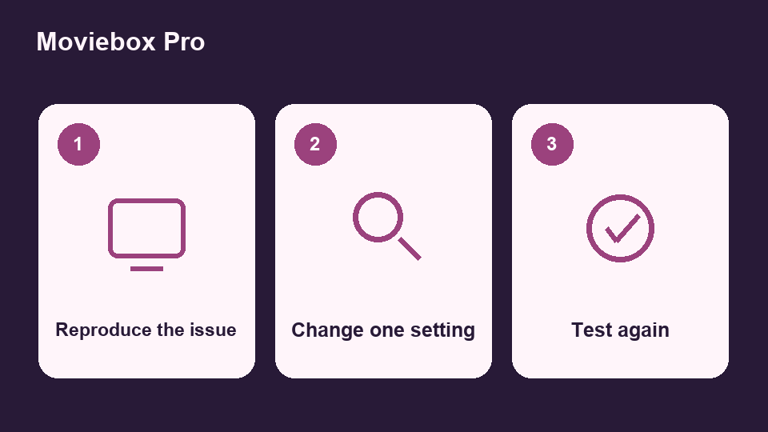
Reproduce the problem once under normal conditions to see whether it is consistent. For example, if video freezes after you connect Bluetooth headphones, try the same licensed title using the device speakers. If it freezes in both cases, you can tell support you checked two audio outputs. Change one condition at a time so you can tell which step affected playback.
Use the verified update channel
If you installed the app from a trusted storefront, return to its listing and check the seller or developer name and support contact. Confirm the verified publisher identifies that storefront as an authorized route, or ask the publisher directly. For an APK supplied directly by a publisher, consult the publisher’s documented update process. Treat an update prompt shown on a website or in an unexpected message as a separate claim to verify before acting.
If Android reports that an update conflicts with the installed package, check the source used for both installations. Report the error to verified publisher support and ask which update, if any, applies to your existing installation. Uninstalling can erase local data. Before clearing data or reinstalling, check what you would lose and whether you can sign in again. Searches for an old Moviebox app download may return packages whose history you cannot establish. Ask about supported releases and recovery steps through the channel you verified.
Test playback, account access, and the connection
Start with reversible checks. Close and reopen the app or browser, then restart the device if needed. Test an unrelated service on the same network to see whether connectivity problems are broader. If you can safely try another ordinary network, repeat the same playback test there. Keep the title, device, and account the same. A video that works on one network gives you a concrete observation to share with support.
If a sign-in prompt appears during playback, verify that it leads to the publisher’s documented sign-in destination before entering details. For a laptop, also check whether you are using a browser the publisher supports. For a television setup, note whether menus respond and whether sound or picture fails first. These details help distinguish an account problem from a device or playback problem.
Investigate a missing title through the rights holder
If other licensed videos play and one movie or season has disappeared, check the studio, network, or regional rights holder’s viewing information for that exact title. Match your country, season, and edition. For instance, a regional distributor may list a theatrical cut and an extended edition separately. Ask the rights holder which local service carries the edition you want if its public information leaves that unclear.
Keep the licensing question separate when contacting support. Send the publisher the device model, operating system, app version if known, and exact error. Include the steps you tried and what happened at each one. Send a title availability question to the rights holder with the country and exact release. Leave passwords, payment details, and verification codes out of either request. If no update path can be verified or the title’s local rights remain unclear, use a viewing option confirmed by the rights holder.
Next step